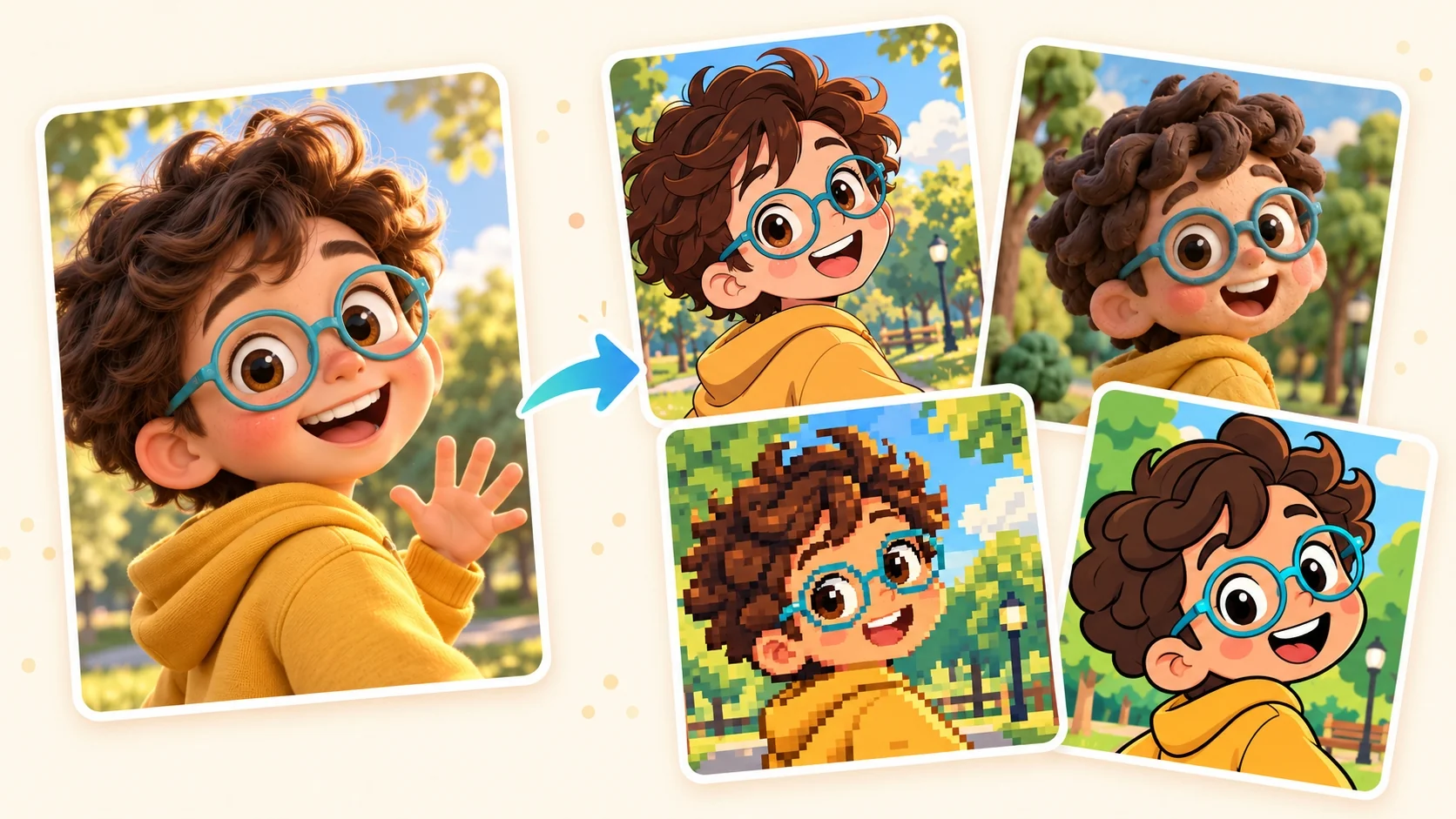
Your photo is the starting point
Start with a photo you want to cartoonize, then choose how it should look. Pixel art builds the picture from visible blocks of color; anime emphasizes drawn outlines and graphic shadows; a dimensional animated look gives the subject a different sense of volume.
The photo supplies the subject and composition. The selected style sets the visual direction, so you can begin without writing a detailed prompt.
Start with one image
Upload a photo from your device. For a portrait, choose a source where the face is clear enough to judge the expression and features you want to recognize in the result.
Open the composer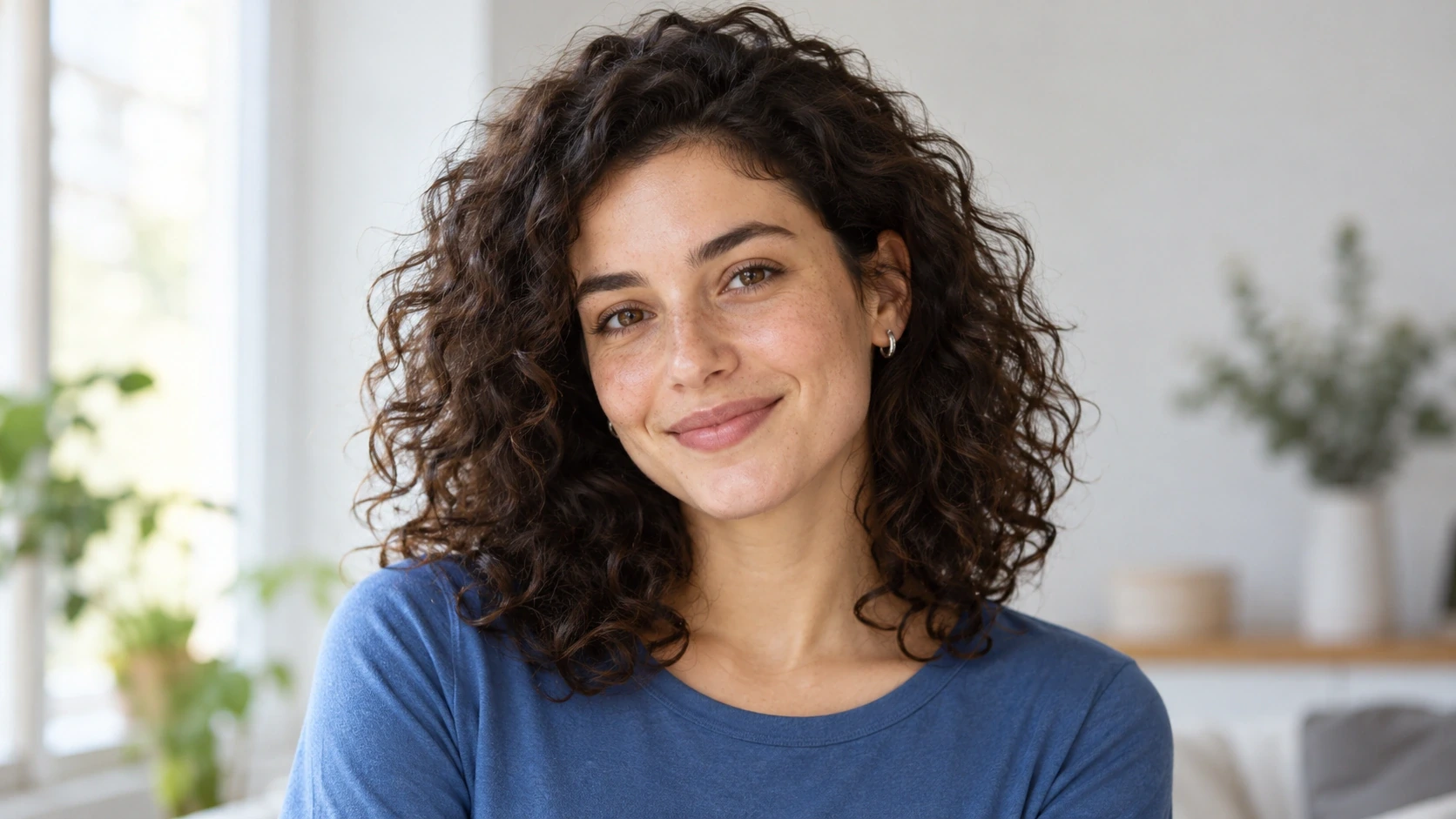
Choose a visual treatment
Choose an available style. Compare outlines, shading and proportions with the look you have in mind, rather than relying on the style name alone.
Open the composer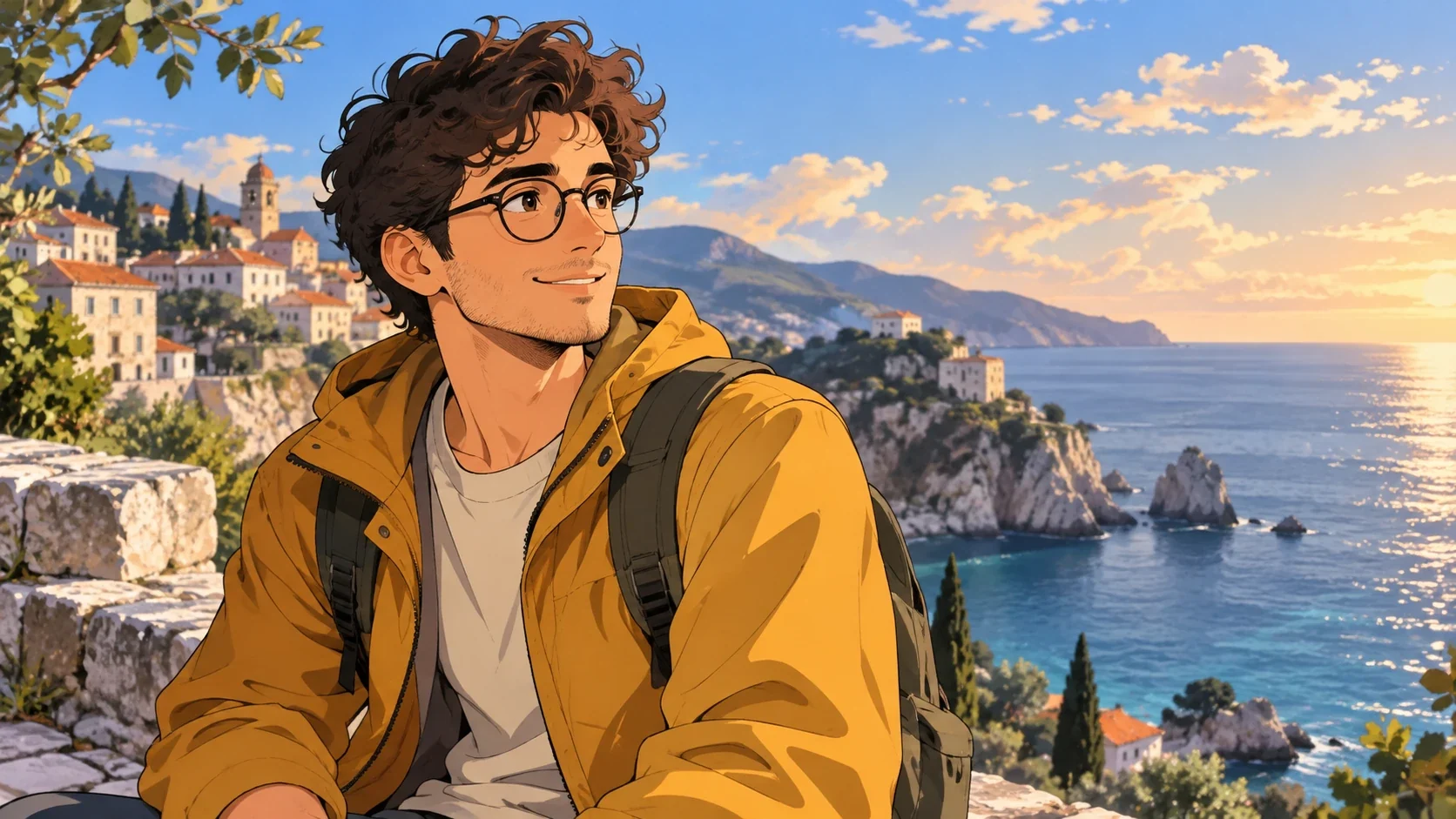
Set the framing
Check the image settings supported by the selected model. Consider whether the picture needs room around the subject or a closer composition for its intended placement.
Open the composer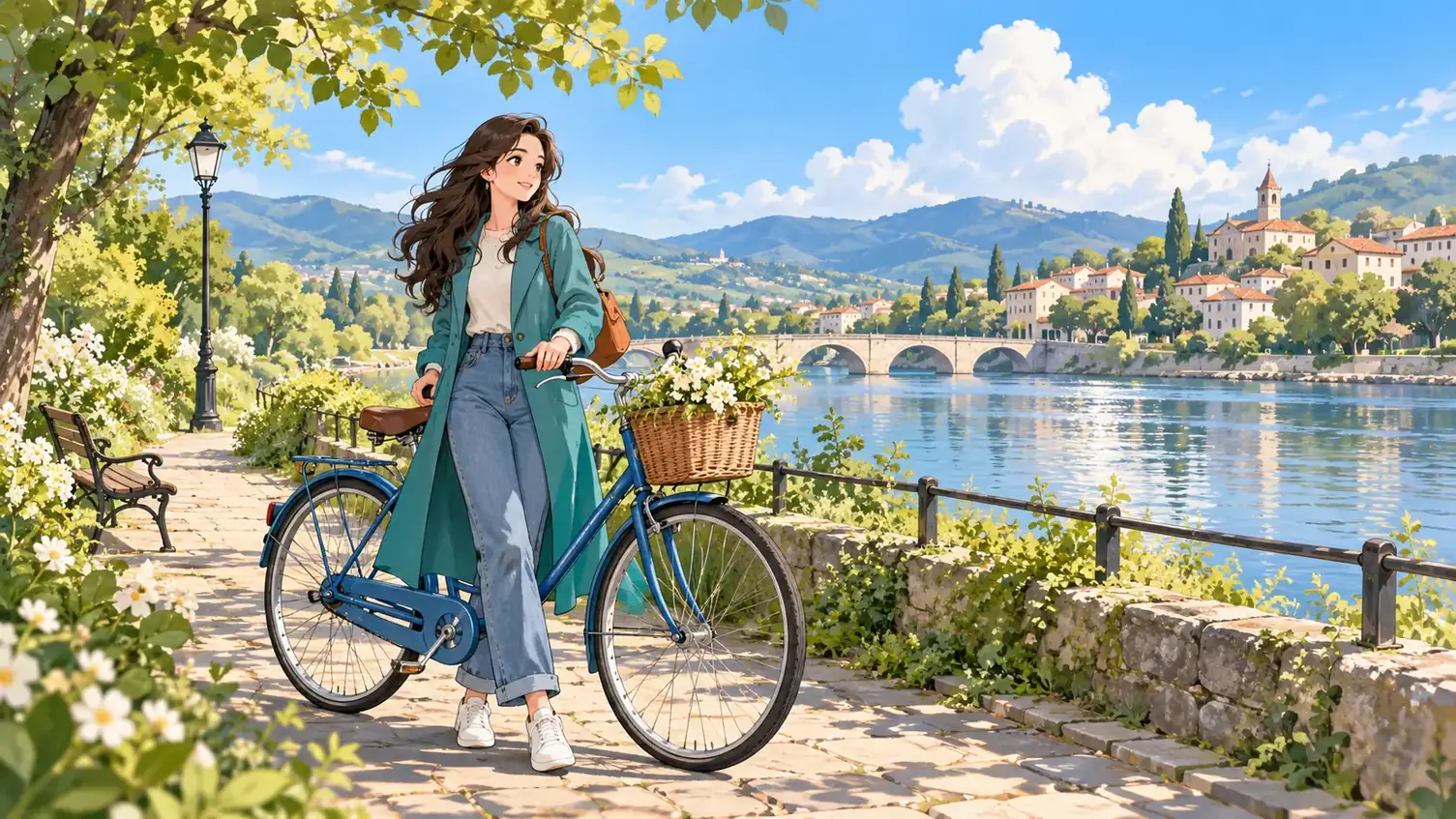
Inspect before you use it
Preview the completed image before downloading. For portraits, check the eyes, expression, hair and clothing; for any image, check important edges and background details.
Open the composer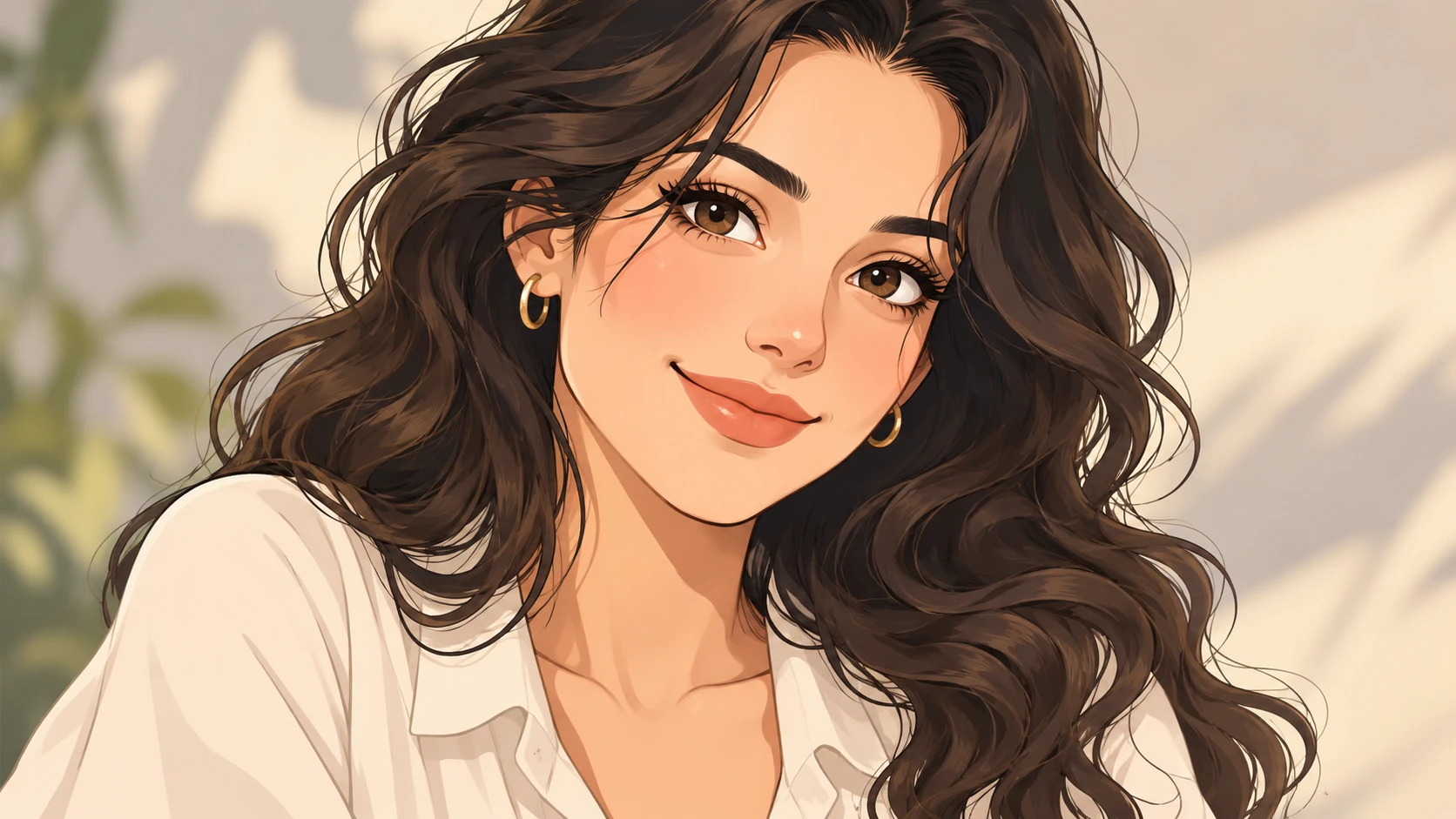
Choose the photo and the style together
A close portrait gives you a useful starting point for a cartoon profile picture. A wider composition leaves more room for clothing, objects and the setting. Decide which of those details matters before choosing the source image. Different treatments simplify different things. Pixel art reduces fine detail to color blocks, while drawn animation uses outlines and shadow shapes. A three-dimensional treatment emphasizes rounded forms and lighting. The same photo can feel quite different under each approach. If you are comparing looks, use the same source photo so the style is the main difference. Review what changed rather than assuming that every detail will remain identical to the photograph.
Open the composer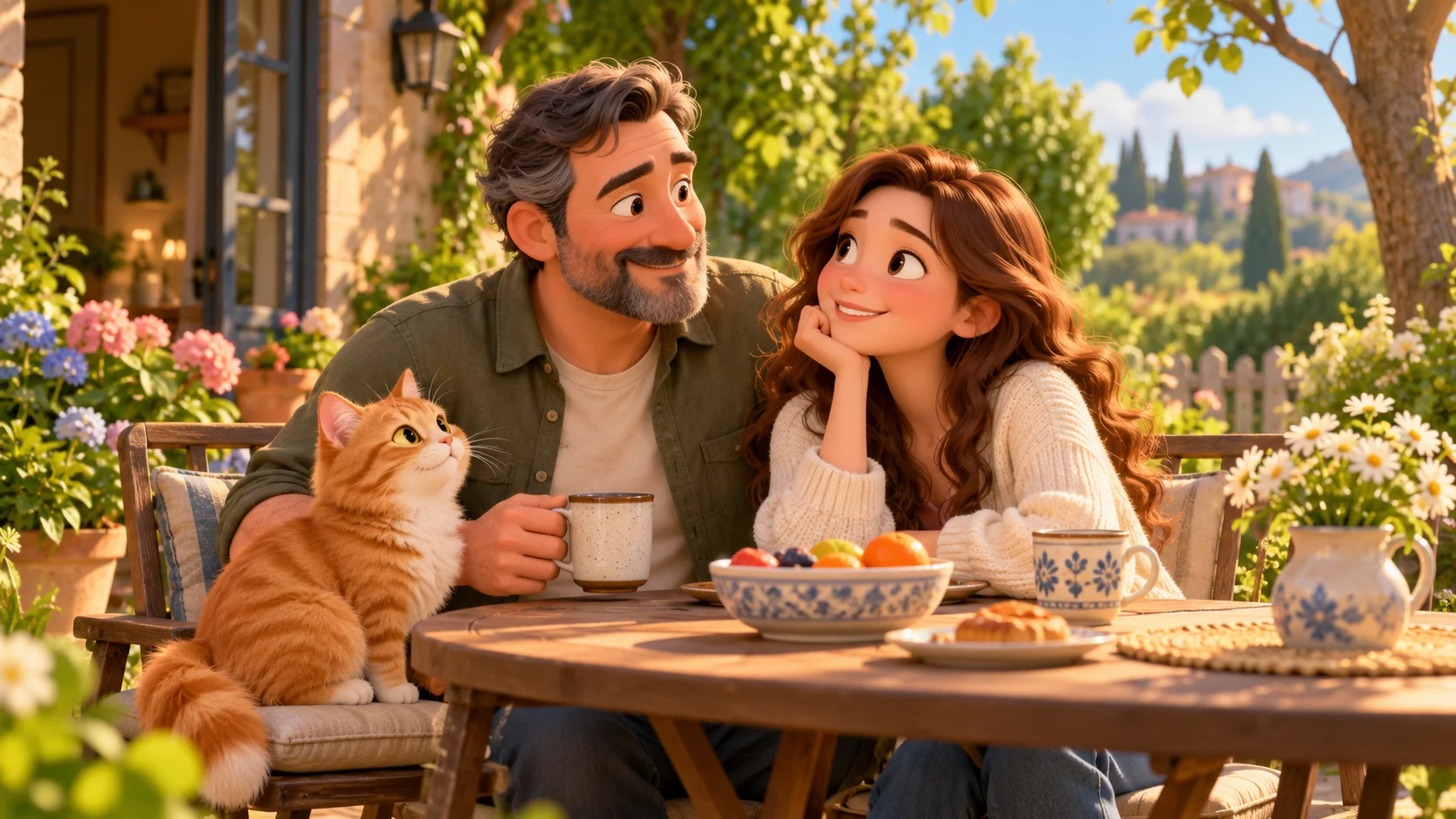
Make the choices that shape your picture
Start with one image
Upload a photo from your device. For a portrait, choose a source where the face is clear enough to judge the expression and features you want to recognize in the result.
Choose a visual treatment
Choose an available style. Compare outlines, shading and proportions with the look you have in mind, rather than relying on the style name alone.
Set the framing
Check the image settings supported by the selected model. Consider whether the picture needs room around the subject or a closer composition for its intended placement.
Inspect before you use it
Preview the completed image before downloading. For portraits, check the eyes, expression, hair and clothing; for any image, check important edges and background details.
How to turn a photo into a cartoon
Begin with your image, choose a look, then review what the conversion changes.
From photo to finished image
- 01
Pick a photo with a clear subject
Start with a photograph whose face, pose or main object is easy to see. Check the upload control for the accepted file types and size limits.
- 02
Match a look to your picture
Compare the available treatments against the details you want to keep, then choose the image settings offered for that look. Sign in and review the credit cost before submitting your conversion.
- 03
Check the converted picture
Use Generate after checking your selection. Once processing finishes, compare the cartoon with your source for facial features, composition and background details before downloading your chosen result.
Choose the photo and the style together
A close portrait gives you a useful starting point for a cartoon profile picture. A wider composition leaves more room for clothing, objects and the setting. Decide which of those details matters before choosing the source image.
Different treatments simplify different things. Pixel art reduces fine detail to color blocks, while drawn animation uses outlines and shadow shapes. A three-dimensional treatment emphasizes rounded forms and lighting. The same photo can feel quite different under each approach.
If you are comparing looks, use the same source photo so the style is the main difference. Review what changed rather than assuming that every detail will remain identical to the photograph.
Common questions
How do I convert my photo to a cartoon?
Upload a photo, choose an available look and review the supported settings. Sign in, check the credit cost and use Generate, then inspect the completed image before downloading it.
Do I need ChatGPT to cartoonize a photo here?
No. This photo workspace uses your uploaded image and a style selection; you do not need to move the photo into a ChatGPT conversation to use it.
Do I need to write a prompt?
You can start with your photo and a style selection. The style sets the visual direction, so a detailed written prompt is not required for this photo-conversion flow.
What kind of portrait should I upload?
Choose a clear photo with a visible face and the expression you want to work from. Heavy blur, deep shadows and objects covering the face make it harder to assess which features should carry into the cartoon.
Can I use every style in the directory?
Yes. All 61 styles in the directory can be used to generate cartoon images. Upload a photo, then choose your preferred style in the workspace.
Will the cartoon look exactly like my photo?
Stylization changes the way shapes, proportions and details are drawn. Treat the result as an interpretation of your photo, and check the features and composition that matter to you before using it.
Does this tool create an animated video?
This page converts a photo into a still cartoon image. A cartoon or anime look describes the appearance of that image, not a moving video.
How much does a conversion cost?
You need to sign in to generate an image. Generation is charged in credits; check the pricing page for current details and review the displayed cost before submitting.